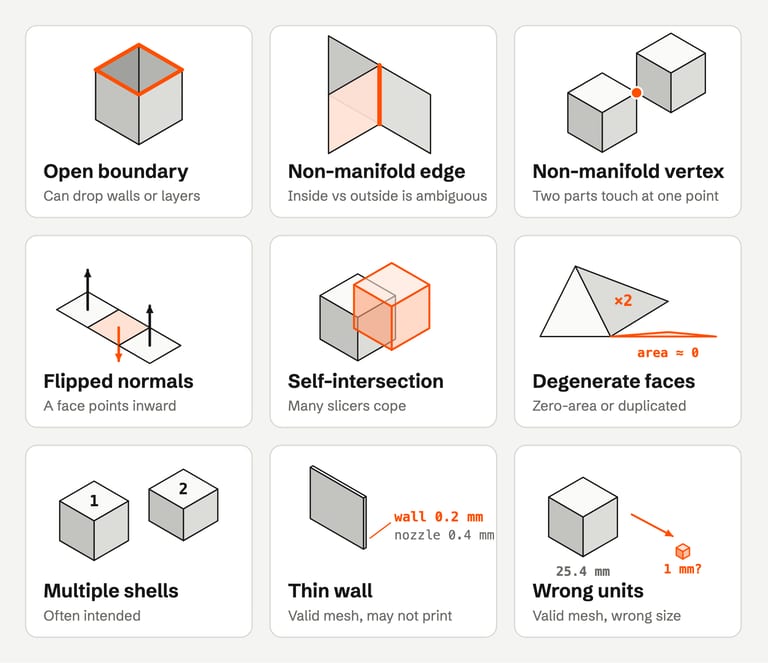
An STL file is only a list of triangles. Each triangle stores three corner points and a normal vector that should point out of the solid, and nothing else: no units, no colors, no information about which triangles belong together (Library of Congress, STL format). A slicer has to reconstruct a closed solid from that list. When the triangles do not describe one, you get a warning.
The warnings come from a short list of problems, and only some of them change what gets printed. This guide maps each one and helps you decide whether to fix it, ignore it or go back to the source model.
How an STL describes a solid#
The STL format has two encodings, ASCII and binary, and both store the same thing: a flat list of triangular facets. The format was first documented by 3D Systems in 1988, and two rules make the list describe a solid (Library of Congress):
The right-hand rule. The corners of each triangle are listed counterclockwise when viewed from outside, so the triangle's normal points out of the object.
The vertex-to-vertex rule. Each triangle shares a complete edge, two corners, with each neighbor. No corner may sit in the middle of another triangle's edge.
A mesh that follows both rules everywhere is closed, every edge belongs to exactly two triangles, and every triangle agrees with its neighbors about which side is outside. Slicers depend on this: they cut the mesh with horizontal planes and need each cut to form closed outlines with a clear inside.
STL has no field for units. Coordinates are plain numbers, and every program decides how to interpret them (The StL Format, Marshall Burns, archived). That is why scale problems are so common.
The errors, one by one#
| Problem | What it is | Common causes | Changes the print? |
|---|---|---|---|
| Open boundary | Edges with only one face; a hole or gap | Missing faces, unwelded seams, bad export | Often: missing walls or layers |
| Non-manifold edge | An edge shared by three or more faces | Merged parts, internal walls, fins | Often: ambiguous inside/outside |
| Non-manifold vertex | Parts that touch at a single point | Parts placed corner to corner | Sometimes |
| Flipped normals | Faces that point inward | Bad export, mirrored parts, editing | Sometimes; always if a whole part is inside out |
| Self-intersection | Surfaces that pass through each other | Overlapping parts not unioned | Usually handled by the slicer |
| Degenerate / duplicate faces | Zero-area triangles; the same triangle twice | Precision loss, conversions | Rarely |
| Multiple shells | Separate closed pieces in one file | Assemblies, supports, loose debris | Only if unintended |
| Thin wall | Geometry thinner than the printer can lay down | Design, scaling down | Yes: missing or weak features |
| Wrong units | Numbers interpreted in the wrong unit | Inch vs millimeter, meters from game tools | Yes: wrong size |
Open boundaries (holes)#
A boundary edge belongs to only one triangle. A chain of them outlines a hole. Some holes are obvious, such as a missing face. Many are invisible: two edges that sit on top of each other but were never joined look closed on screen but leave a crack in the topology.
In the slicer, an open boundary can produce outlines that do not close. The slicer then has to guess, and the guess can be a missing wall, a hole in a top surface or an empty layer. Small, flat holes are easy to fill automatically. Large or curved openings need judgment, because the "right" fill is a design decision.
Non-manifold edges#
A non-manifold edge is shared by three or more faces. Typical sources are two parts merged without a proper boolean union, which leaves an internal wall, or a stray face sticking out of the surface like a fin. The slicer cannot tell which side of that edge is inside. Read the non-manifold guide for diagrams and tool-by-tool fixes.
Non-manifold vertices#
Two parts that touch at exactly one point, such as two cubes meeting at a corner, form a non-manifold vertex, sometimes called a bowtie. The surfaces are each fine; the problem is that they share a single point. Many slicers print this as two parts touching, which may be what you want. Mesh editors and boolean operations are more likely to struggle with it.
Flipped and inconsistent normals#
Each face's normal should point out of the solid. When neighboring faces disagree, the mesh has inconsistent normals. A harder case is a part that is consistently inside out: every face points inward, so neighbors agree and nothing looks inconsistent. Blender's Face Orientation overlay shows the back side of faces in red, which makes both cases easy to spot (Blender manual).
Self-intersections and overlapping shells#
A self-intersection is a surface that passes through itself or through another part. The most common case is two closed parts that overlap, such as a figure's arm pushed into its body. Each part is a valid closed solid; together they overlap. Many slicers handle this by merging overlapping volumes. Cura does it by default with Union Overlapping Volumes, and UltiMaker notes that this "may cause unintended internal cavities to disappear" (UltiMaker Cura definitions). Blender's 3D Print Toolbox documentation also notes that some slicers can deal with intersections, so they are not always worth resolving (3D Print Toolbox wiki).
Degenerate and duplicate faces#
A degenerate face has zero area. Its corners are identical or lie on one line. A duplicate face repeats another triangle exactly. Both usually come from precision loss or file conversion. They rarely change the print and are safe to remove.
Multiple shells#
A shell is a connected piece of surface. A file with several shells may be an assembly, a model with separate supports, or a model with stray debris left from scanning. PrusaSlicer and Bambu Studio both import an STL as one object no matter how many shells it contains, and both can split it into objects or parts (Prusa, Bambu Lab). The question is only whether every shell is supposed to be there. Note that Meshmixer's Inspector deletes small components by default, so check before accepting its repair (Meshmixer help).
Thin walls#
A wall thinner than your printer can lay down is not a mesh error. The mesh can be closed and clean. The slicer may still drop it or print it as a single weak line. Cura, for example, does not print features thinner than its Minimum Feature Size setting (0.1 mm by default in Cura 5.13) (Cura definitions). Fix thin walls in the source model or with slicer settings, not with mesh repair.
Wrong units or scale#
Because STL has no units, a part designed as 1 inch can arrive as 1 mm, and a model built in meters can arrive 1,000 times too small. PrusaSlicer offers to convert from inches when an imported object looks too small (PrusaSlicer 2.3.0 release notes). Cura has preferences that automatically scale very small or very large models (UltiMaker Cura preferences).
How slicers report mesh errors#
Every slicer below says plainly that its automatic handling is partial. Prusa writes that "not all of the corrupted 3D models can be repaired automatically" (Prusa Knowledge Base). Bambu Lab writes that "Studio can only detect and repair some errors" (Bambu Lab wiki).
| Slicer | Where you see it | Built-in repair | Notes, as of October 2026 |
|---|---|---|---|
| Bambu Studio | Warning symbol in the object list, plus a notification | Automatic to a degree; Fix Model for more | Fix Model is Windows-only |
| OrcaSlicer | Warning icon in the object list | Fix Model | Works on Windows, macOS and Linux since 2.4.0 |
| PrusaSlicer | Warning symbol next to the object name | Automatic on load for STL; Fix by Windows repair algorithm | Manual repair is Windows-only |
| UltiMaker Cura | Notification and red areas in X-ray view | No file repair; Mesh Fixes settings change how the mesh is sliced | X-ray does not show every error |
Bambu Studio#
Bambu Studio marks a problem model with a notification and a warning symbol in front of the object name. It repairs models "to a certain degree" automatically. For more, right-click the object and choose Fix Model, which uses Microsoft's repair APIs and is supported only on Windows (Bambu Lab wiki). On macOS, Bambu Lab points users to an external online repair service instead (Bambu Studio 1.9.7 release notes). Our Bambu Studio STL repair guide shows what each warning looked like in our tests and which ones changed the print.
OrcaSlicer#
OrcaSlicer shows a warning icon next to the object. You can click it or right-click the object and choose Fix Model (OrcaSlicer wiki). Since 2.4.0, Fix Model works on Linux and macOS as well as Windows (OrcaSlicer 2.4.0 notes). A rebuilt repair in builds newer than 2.4.2 also removes small self-intersections but leaves larger overlaps in place.
PrusaSlicer#
PrusaSlicer repairs STL files automatically on load to a degree, and shows a warning symbol next to the model's name when problems remain (Prusa Knowledge Base). Since version 2.4, this automatic repair applies to STL imports only (PrusaSlicer 2.4.0 notes). The manual option, Fix by Windows repair algorithm (called Netfabb before 2.7), is available on Windows only (PrusaSlicer 2.7.0 notes).
UltiMaker Cura#
Cura shows a notification, "Your model has missing or extraneous surfaces", and marks the problem area with a pattern (UltiMaker support). The X-ray view shows detected errors in red, but UltiMaker notes that not all errors are displayed, "so this is not a guarantee the model is correct" (UltiMaker support). Cura does not rewrite your file. Instead, its Mesh Fixes settings (Union Overlapping Volumes, Remove All Holes, Extensive Stitching, Keep Disconnected Faces and others) change how it slices the mesh (UltiMaker support). UltiMaker also cautions that slicing non-manifold models "may lead to unexpected print results".
Which errors matter for printing#
A warning tells you the mesh breaks a rule. It does not tell you whether the print will change. The sliced layer preview does. Use the flow below, then the checklist in How to check an STL after repair.
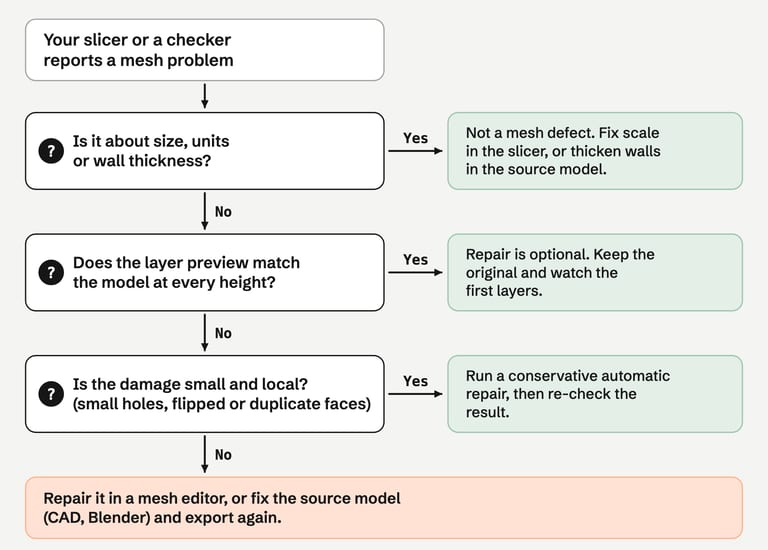
Fix before printing when the preview shows missing walls, open top surfaces, empty layers or parts that disappear. Also fix it when a whole part is inside out, or when the size is wrong. These change the physical result.
Check, then usually leave a small number of auto-repaired errors, degenerate or duplicate faces, intended multiple shells, and overlapping parts that the slicer merges. Keep the original file, slice it, and look at the layers.
Fix in the source, not in the mesh when the problem is design: walls thinner than your nozzle can print, parts that should be one solid but were modeled as touching pieces, or scale. Exporting again from CAD or Blender beats repairing a mesh you will regenerate anyway. For Blender, see STL export settings and fixes.
Tip
Some "errors" are deliberate. Drain holes in resin prints, vents and open-bottom shapes are real openings. An automatic hole filler can close them. Bambu Lab warns that its Close Holes slicing mode "may unintentionally alter the model's design or functionality" (Bambu Lab wiki).
What FixSTL checks, and what it does not#
FixSTL inspects STL files in your browser. The table describes what ships as of October 2026.
| Problem | FixSTL detects | FixSTL repairs automatically |
|---|---|---|
| Open boundaries | Yes: boundary edge count | Flat or curved holes spanning up to about a third of the model |
| Non-manifold edges | Yes: count | When caused by duplicate or unwelded faces, a zero-thickness flap, or a small damaged patch |
| Non-manifold vertices | Yes, in the full check | Only inside a small damaged patch; parts touching at a corner stay as they are |
| Inconsistent normals | Yes: normal conflicts between neighbors | Yes: neighbors are made to agree |
| A whole shell inside out | Found during repair, reported as inside-out shells | Yes: the shell is turned outward |
| Self-intersections | Yes, in the full check: intersecting triangle pairs | Small local areas: cut out and filled again. Overlapping parts and boolean leftovers: no |
| Degenerate and duplicate faces | Yes | Yes: removed |
| Nearly coincident corners | Yes | Yes: welded within a small tolerance |
| Multiple shells | Yes: shell count | No change |
| Thin walls | Estimated against your nozzle; single surfaces flagged | No |
| Units | No | No |
FixSTL's full check runs as WebAssembly in your browser. If your browser cannot run it, a Basic check takes over; it skips the self-intersection and non-manifold vertex checks, and the report says so: those rows read "Not checked".
Repairs are conservative. FixSTL compares each repair with your original surface. Most fixes may move it by at most 0.1% of the model's bounding-box diagonal. Rebuilding a damaged patch replaces surface there, but the result must stay within 1% of the diagonal of the original and keep the same number of parts. A repair beyond these limits is discarded and your original geometry is kept. FixSTL will therefore decline some repairs other tools attempt; the non-manifold guide covers Blender, Meshmixer and MeshLab.
FAQ#
Why does my slicer say my STL has errors when it looks fine?#
A 3D viewer draws triangles and does not check how they connect. Two edges that are a few thousandths of a millimeter apart, a wall hidden inside the model or a duplicated face are invisible on screen but break the rules a slicer relies on. See why a model can look fine but still be non-manifold.
Can I print an STL that has errors?#
Often, yes. Slicers repair simple problems on load and slice many imperfect meshes correctly. The test is the layer preview: if every layer matches the model, the warning did not change the result. If walls, layers or features are missing, fix the mesh first.
Do I need to fix every warning?#
No. Degenerate faces, duplicate faces and intended multiple shells rarely matter. Open boundaries and non-manifold edges matter when they change the sliced layers. Thin walls and scale need a design or settings change, not a mesh repair.
Does an STL file store units?#
No. The format has no field for units, so the same numbers can mean millimeters or inches. Most slicers assume millimeters. If a model imports 25.4 times too small, it was probably designed in inches.
Is 3MF better than STL for avoiding errors?#
3MF stores units (millimeters by default) and its specification requires model meshes to be manifold with outward-facing normals (3MF Core Specification). That removes the unit ambiguity. A broken mesh exported to 3MF is still broken, so the checks in this guide still apply.
What is the difference between watertight and printable?#
Watertight means no holes; printable means your printer can make it. A watertight mesh can still be too thin or the wrong size. See watertight vs manifold vs printable.
Sources#
Library of Congress, STL (STereoLithography) File Format Family
Prusa Knowledge Base, Corrupted 3D models for printing and Split to objects/parts
Bambu Lab Wiki, Fix Model, Split to Objects/Parts and Special Slicing Modes
OrcaSlicer Wiki, STL transformation and repair
UltiMaker Support, Missing or extraneous surfaces, Cura workflow and Mesh fixes settings
Blender Manual, Viewport Overlays
3MF Consortium, 3MF Core Specification
FixSTL counts open edges, non-manifold edges and vertices, normal conflicts, self-intersections, duplicate and degenerate faces and shells. Files are processed locally and never uploaded.
Check your STL in the browser