Bambu Studio checks every model it imports and repairs simple defects in memory. When it finds something, it shows a notification in the bottom right of the 3D view. On Windows you can then run Fix Model. On a Mac, the same notification sends you to an outside service instead.
That leaves two practical questions: does the warning mean the print will fail, and what should you do about it? We tested both in Bambu Studio 02.08.02.61 on macOS with files exported from Blender, each with one known problem. We read every message, sliced every file, and compared the toolpaths with a clean version of the same part.
What we tested#
| Item | Setting |
|---|---|
| Bambu Studio | 02.08.02.61 on macOS, Bambu Lab A1 with 0.4 mm nozzle, 0.20mm Standard profile |
| Test files | Exported from Blender 5.2.1: a 40 × 20 × 12 mm block and a 20 mm cube, each with one problem |
| Compared | Import messages, the G-code moves of each sliced file, and the FixSTL report |
| Not tested | Windows and Fix Model, Linux, scans and other large or complex meshes |
| Date | 27 October 2026 |
How each file was made in Blender is described in Blender STL export for 3D printing.
What Bambu Studio reports on import#
The notification always lists Object name, Size, Volume and Triangles. When the mesh has a problem, the bar turns orange and two more lines appear, for example:
Info: 4 open edges
Tips:
To repair the model, please use a third-party tool before importing it into Bambu Studio, such ashttps://www.formware.co/onlinestlrepair.
Bambu Lab's wiki adds that the object also gets "a warning symbol … in front of the object name in the object list", and that the check is incomplete: "Studio can only detect and repair some errors; certain model defects may remain undetected, so a repair prompt might not appear" (Fix Model, Bambu Lab Wiki).
Here is what it said about each test file, what was actually wrong, and whether the print changed:
| File | Bambu Studio said | What was actually wrong | Sliced result |
|---|---|---|---|
| Block, one small face missing | Info: 4 open edges | A 4-edge hole | Identical to the closed block on every layer |
| Block, whole bottom face missing | Info: 4 open edges | An open box | Identical to the closed block on every layer |
| Two cubes merged, wall left inside | Info: 4 open edges | 4 non-manifold edges (an internal wall) | Identical to a clean 20 mm cube on every layer |
| Block, one face flipped | No warning | 4 edges between opposite normals | Identical to the clean block |
| Block, written in metres | Object too small dialog | Units | Depends on your answer |
| Plane, no thickness | "Loading of a model file failed." | Zero volume | Not loaded |
| Peg joined into block, no boolean | No warning | 2 intersecting shells | Sliced |
| Hidden boolean cutter exported | No warning | An extra cylinder through the part | Different: the hole was printed solid |
Two things stand out. Bambu Studio describes an internal wall as "open edges", while Blender and FixSTL call the same four edges non-manifold. Different tools count differently, so compare causes, not numbers. And the warnings with the most alarming wording made no difference to these simple prints, while the one file that printed wrong was silent.
Note
These are small, simple test parts. Load-time repair has more to guess on a scan, a sculpt or a damaged download, so treat "no difference" as a result for these files, not a rule.
Object too small: the units question#
STL files have no units, and Bambu Studio reads the numbers as millimetres. A part modelled in metres, as Blender does by default, arrives 1000 times too small. Bambu Studio detected this and asked:
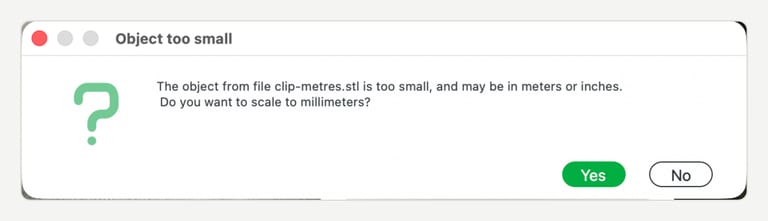
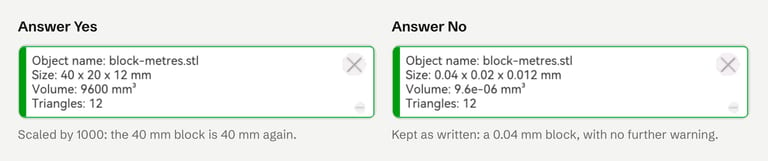
Answer Yes if the part should be larger, then confirm its size against the design. If you click No by mistake, delete the object and import it again, or scale it in Bambu Studio. Better still, fix the export so the file is right everywhere: in Blender, export with Scale 1000 or model in a millimetre scene (how to set it up).
Fix Model on Windows, macOS and Linux#
Bambu Lab documents Fix Model as a Windows feature: "If you are using Bambu Studio under Windows 10/11, it will have access to Microsoft's APIs for repairing 3D models through Netfabb. Note that this feature is only supprted on the Windows platform" (Fix Model, Bambu Lab Wiki). The wiki lists three ways to start it on Windows: right-click the object and choose Fix Model, click the Repair link in the warning, or click the warning symbol in the object list. We did not test it.
On macOS, our notifications offered no repair command. They pointed to Formware's online service instead, as shown above. That matches the 1.9.7 release note, which added the Formware link for macOS users.
Whatever the platform, the repair happens outside your model's source. Keep the original file.
Fix it, then re-slice#
1. Read the notification and the size#
Import the STL. Before anything else, compare Size with the dimensions you designed. Then read the warning lines, if any. To see several models at once, check each object's warning symbol in the object list.
2. Find the cause#
Open the same file in FixSTL. It runs in the browser on any platform and reports boundary edges, non-manifold edges and vertices, flipped neighbours, duplicate and zero-area faces, self-intersections and separate shells. Use the counts to pick a fix:
| FixSTL shows | Usual fix |
|---|---|
| A few boundary edges | Automatic repair (small holes), or fill the hole in the source model |
| Normal conflicts | Automatic repair |
| Non-manifold edges or vertices | Fix in the source model: delete internal faces or union the parts. See non-manifold edges |
| Self-intersections, more than 1 shell | Usually parts that were placed, not joined. Union them in the source model |
| Wrong dimensions | Export again at the right scale |
3. Repair#
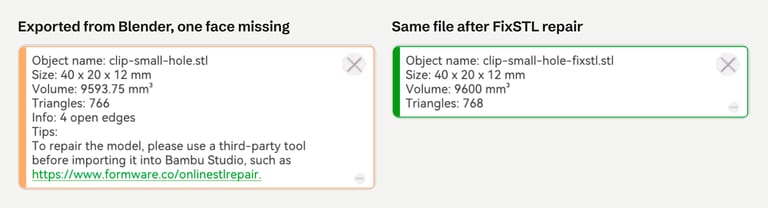
For holes and flipped faces, FixSTL's automatic repair is enough. It also removes zero-thickness flaps and rebuilds small patches where faces cross each other, and it keeps your original if the result would move away from your surface beyond set limits (0.1% of the model's size, or 1% where it rebuilt a damaged patch). Our file with one missing face came back closed:
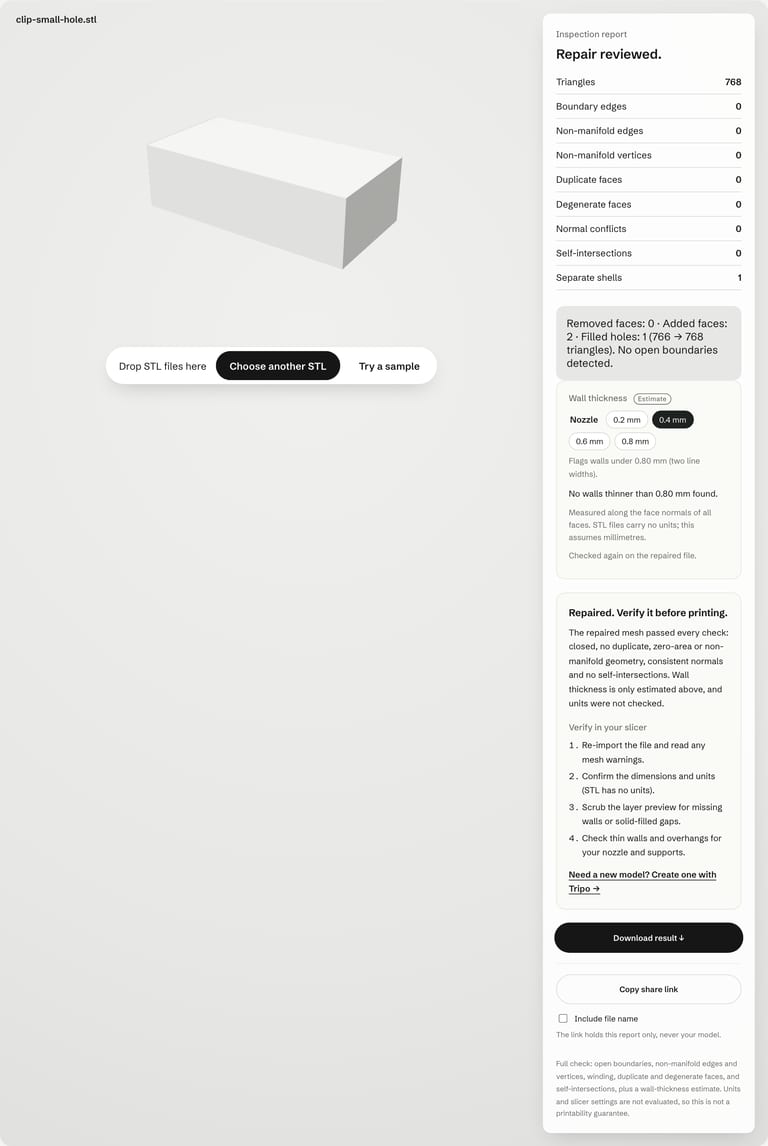
For an internal wall, overlapping parts, a missing side or an exported cutter, FixSTL leaves the geometry alone and reports what it found; we re-ran all four through the October 2026 engine with the same result. Those fixes change the design, so make them in the model: Blender STL export shows each one.
4. Re-import and confirm#
Delete the old object and import the repaired file. The notification should turn green with no Info line, and the size should not change:
5. Slice and scrub the preview#
Slice the plate and drag the layer slider through the model (View slicing information). Look for missing walls, layers that stop early, and solid regions where the design has holes. Bambu Studio can also warn after slicing, for example "Object can't be printed for empty layer between …", which can point to parts that are too thin or a faulty mesh (source).
When there is no warning#
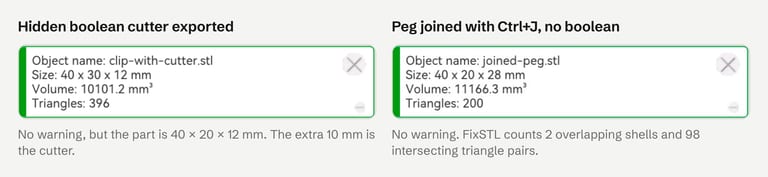
Both files above imported with a green notification:
Hidden boolean cutter. The file was 40 × 30 × 12 mm for a 40 × 20 × 12 mm part. The extra 10 mm was the cutter cylinder, which Bambu Studio sliced as a solid peg filling the hole.
Peg joined without a boolean. Two closed shells overlap. Bambu Studio sliced it, and reported a volume of 11,166.3 mm³ where the joined solid is 10,853 mm³, because the overlap was counted twice. FixSTL counted 2 shells and 98 intersecting triangle pairs.
So check every import against the design: the size, the shell count if your checker shows one, and the preview where the part has holes or joins. The full checklist is in how to check an STL after repair.
Tip
If an STL contains several separate parts, Bambu Studio loads all shells "as a single object". Split to Objects or Split to Parts separates them (Bambu Lab wiki), which is also a quick way to spot an unexpected extra piece.
FAQ#
What does "open edges" mean in Bambu Studio?#
Edges that Bambu Studio could not pair with a neighbouring face, which usually means a hole. In our tests it also used "open edges" for an internal wall, which other tools call non-manifold. Check the file in a mesh checker to see which one you have.
Does an open edges warning mean my print will fail?#
Not necessarily. Bambu Studio "will automatically repair models to a certain degree" (Bambu Lab Wiki). In our simple tests the warned files sliced exactly like the clean part. Check the layer preview. If it matches the model, the warning did not change the print.
Why is there no Fix Model option in Bambu Studio on Mac?#
Fix Model uses a Windows repair service through Netfabb, and Bambu Lab documents it as Windows-only. On macOS, Bambu Studio suggests an outside tool. Any STL repair tool works, including FixSTL in the browser, or you can fix the source model.
Bambu Studio says "Object too small". Should I click Yes?#
Yes, if the part is meant to be in millimetres and the file was written in metres or inches. Then check the size. In our test, Yes turned a 0.04 mm block into the intended 40 mm, and No kept it at 0.04 mm.
I repaired the STL but Bambu Studio still shows a warning. Why?#
Either the repair did not fix that kind of problem, or the old object is still on the plate. Delete it and import the repaired file. If the warning remains, check the file in FixSTL to see what is left, and fix it in the source model.
Bambu Studio shows no warning. Is my model fine?#
Not necessarily. Bambu Studio's check is not complete, and overlapping parts or extra objects in the file do not trigger it. Compare the size with your design and scrub the preview.
Sources#
Bambu Lab Wiki, Fix Model, Bambu Studio 1.9.7 release note, Split to Objects/Parts and View slicing information
Bambu Studio source, empty-layer warning
FixSTL tests, 27 October 2026: Bambu Studio 02.08.02.61 on macOS with files from Blender 5.2.1 LTS. Not tested: Windows, Fix Model, Linux, complex meshes.
FixSTL shows the size, open and non-manifold edges, flipped faces and overlapping shells in your browser, repairs small defects conservatively, and works on Mac, Windows and Linux.
Check an STL before Bambu Studio