Blender is not a CAD program, and its STL exporter does exactly what it is told. Most "broken" STL files from Blender are not broken by the exporter. They carry something from the scene that you did not mean to print: the wrong unit scale, a hidden boolean cutter, parts that overlap instead of being joined, or a surface with no thickness.
We built each of those cases in Blender 5.2.1 LTS on macOS, exported them with the built-in STL exporter, and opened every file in Bambu Studio 02.08.02.61 and in FixSTL. This guide is the result: what to set before you export, what to check in Blender, and how to fix what you find. Full test notes, including what we did not test, are at the end.
What we tested#
| Item | Setting |
|---|---|
| Blender | 5.2.1 LTS, factory settings, File ‣ Export ‣ STL (.stl) |
| Test part | 40 × 20 × 12 mm block with an 8 mm hole made by a Boolean Difference modifier |
| Problem files | Unit variants, hidden cutter, internal wall, small and large holes, flipped faces, overlapping parts, a plane with no thickness |
| Checked in | Bambu Studio 02.08.02.61 (macOS, Bambu Lab A1 profile) and FixSTL |
| Date | 27 October 2026 |
The export panel, setting by setting#
Open File ‣ Export ‣ STL (.stl). In Blender 5.2 the panel has two groups, General and Geometry.
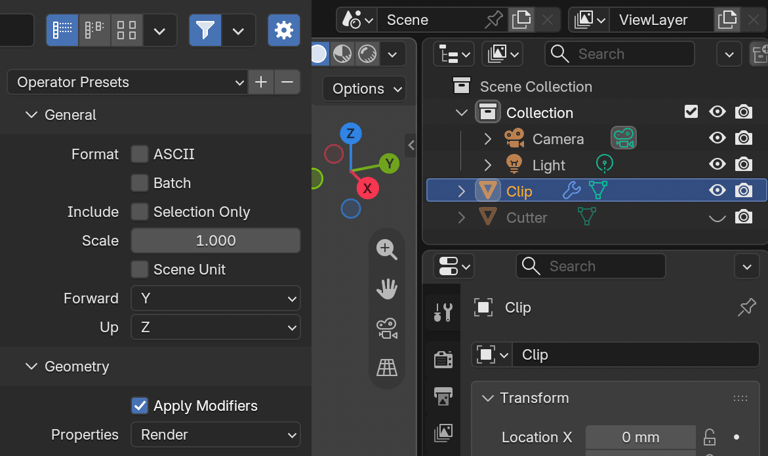
| Setting | Default | What it does | For 3D printing |
|---|---|---|---|
| ASCII | off | Writes text STL instead of binary | Leave off. Binary is smaller and every slicer reads it |
| Batch | off | "Export each object as a separate STL file" (Blender manual) | Use it for multi-part prints you want to place separately |
| Selection Only | off | "When checked, only selected objects are exported" | Turn it on unless the scene holds only the part |
| Scale | 1.000 | Multiplies every coordinate | 1000 if you modelled in metres |
| Scene Unit | off | "Apply current scene's unit (as defined by unit scale) to exported data" | Leave off for slicers. See the next section |
| Forward / Up | Y / Z | Axis conversion | Leave as is. Our part arrived in Bambu Studio with Z up, 12 mm tall |
| Apply Modifiers | on | Exports "the resulting mesh after all Modifiers have been calculated" | Leave on, or the boolean hole and other modifiers are lost |
| Properties | Render | "Determines properties like object visibility, modifiers etc., where they differ for Render and Viewport" (tooltip) | Remember that render visibility and render levels decide the export |
Get the size right#
An STL file is a list of triangle corners with no unit attached. Blender writes its own numbers. Bambu Studio, PrusaSlicer, Cura and FixSTL read them as millimetres. Blender's default scene is metric with a Unit Scale of 1, so one Blender unit is one metre.
That gives two working setups, and two common mistakes. We exported the same 40 mm block four ways:
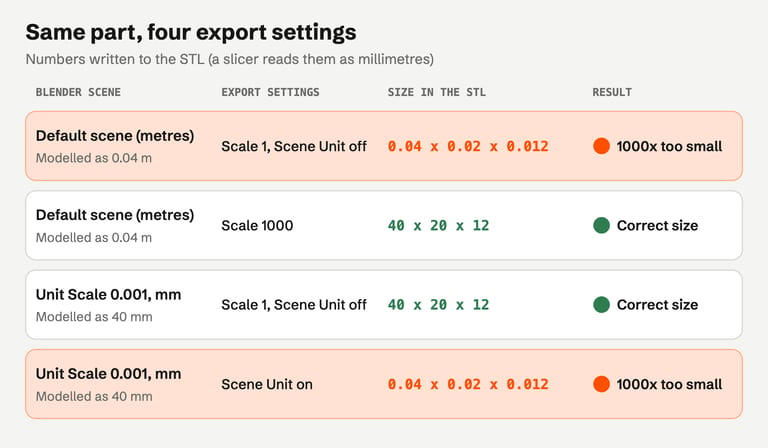
Model in metres, export with Scale 1000. Fine for quick work in the default scene.
Model in millimetres. In Scene Properties ‣ Units, set Unit Scale to 0.001 and Length to Millimeters. Type real dimensions, such as 40 mm, and export with Scale 1 and Scene Unit off.
Scene Unit on in a millimetre scene writes metres: our 40 mm block came out as 0.04. It looks like the "correct" checkbox, but slicers do not want metres.
The default cube is 2 m on each side, so it arrives in a slicer as a 2 mm cube.
If you open a too-small file in Bambu Studio, it asks whether to scale it. In our test, Yes restored the 40 mm block and No kept it at 0.04 mm without any further warning. Bambu Studio STL repair shows the dialog. Fixing the export is better than relying on the dialog, because other tools do not ask.
Make sure only the part goes into the file#
With Selection Only off, the exporter writes every mesh object that is enabled for renders. The eye icon in the Outliner hides an object in the viewport only. The camera icon controls renders.
The trap is the boolean cutter. You add a Boolean Difference modifier, hide the cutter with the eye icon, and the part looks finished. In our test the exported file contained both the holed block and the full 30 mm cutter cylinder:
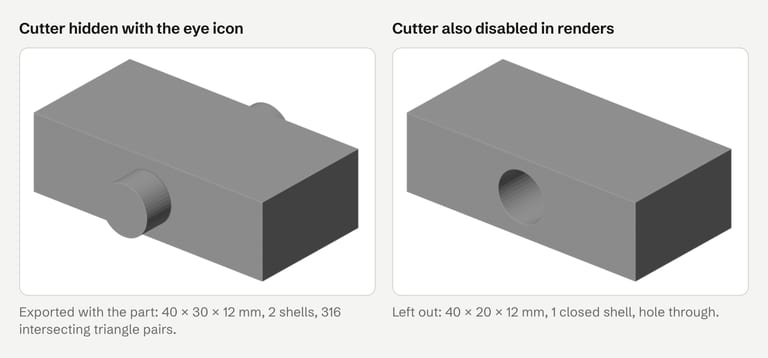
| Export | Size in the STL | Shells | FixSTL |
|---|---|---|---|
| Cutter hidden with the eye icon | 40 × 30 × 12 | 2 | 316 self-intersecting triangle pairs |
| Cutter disabled for renders (camera icon) | 40 × 20 × 12 | 1 | Closed, no issues |
| Part selected, Selection Only on | 40 × 20 × 12 | 1 | Closed, no issues |
Bambu Studio loaded the first file without any warning and sliced the cutter as a solid peg through the hole. The only clue was the size: 40 x 30 x 12 mm for a 20 mm wide part.
Tip
Make Selection Only part of your export habit, and save it with the + button next to Operator Presets at the top of the export panel. Then check the size your slicer reports against the size you modelled.
More than one object#
With Batch off, all exported objects go into one STL. Each becomes a separate shell, and Bambu Studio loads all shells "as a single object" until you use Split to Objects or Split to Parts (Bambu Lab wiki). With Batch on, Blender writes one file per object and appends the object name directly to the file name: in our test, two-objects-batch.stl with objects A and B became two-objects-batchA.stl and two-objects-batchB.stl.
Modifiers and render settings#
Because Apply Modifiers uses the render evaluation by default, a Subdivision Surface modifier exports at its Render level, not its viewport level, and a modifier that is switched off for renders is not applied. If the triangle count or shape surprises you, compare the two levels or set Properties to Viewport.
Check the mesh before you export#
Select All by Trait ‣ Non Manifold#
Select the object and press
Tabfor Edit Mode.Switch to Vertex or Edge select mode. The command is not available in Face mode (Blender manual).
Choose Select ‣ Select All by Trait ‣ Non Manifold.
If nothing is selected, the mesh has no holes, no edges with three or more faces and no flipped neighbours. If something is selected, turn the options in the operator panel on one at a time: Boundaries finds holes, Multiple Faces finds three-way edges such as internal walls, and Non Contiguous finds edges between faces with opposite normals. See non-manifold edges for what each kind means.
The Face Orientation overlay shows the back of faces in red, so a flipped face on the outside of a part stands out (Blender manual). For a printing-specific report, the free 3D Print Toolbox extension adds checks for solidity, intersections, thickness and overhangs in the sidebar.
What the Non Manifold check does not see#
Two problems passed the Non Manifold check in our tests and still mattered:
Overlapping parts joined with
Ctrl-J. Each part is closed, so nothing is selected. The file has two intersecting shells. FixSTL counted 98 intersecting triangle pairs for a peg pushed into our block.A boolean cutter that is a separate object. It is not part of the mesh you are checking, so check the size after export instead.
Fix common problems in Blender#
Every fix below was applied to our test files in Blender 5.2.1, exported again and re-checked in FixSTL. All came back closed with no issues.
| What you see | Likely cause | Fix in Blender |
|---|---|---|
| Multiple Faces edges inside a part | Two parts merged by distance keep the wall between them | Select ‣ Select All by Trait ‣ Interior Faces, then delete faces |
| A few Boundaries edges around a gap | A missing face | Select all, Mesh ‣ Clean Up ‣ Fill Holes |
| Non Contiguous edges, red faces in the overlay | Flipped faces | Select all, Mesh ‣ Normals ‣ Recalculate Outside (Shift-N) |
| Two shells that intersect | Parts joined with Ctrl-J without a boolean | Boolean modifier, Union, on one part with the other as the object; apply it, then remove the other |
| A surface with zero thickness | A plane, sign or text modelled without depth | Solidify modifier with a real thickness |
| Wrong size in the slicer | Unit scale, see above | Export Scale 1000, or a millimetre scene with Scene Unit off |
Notes from the tests:
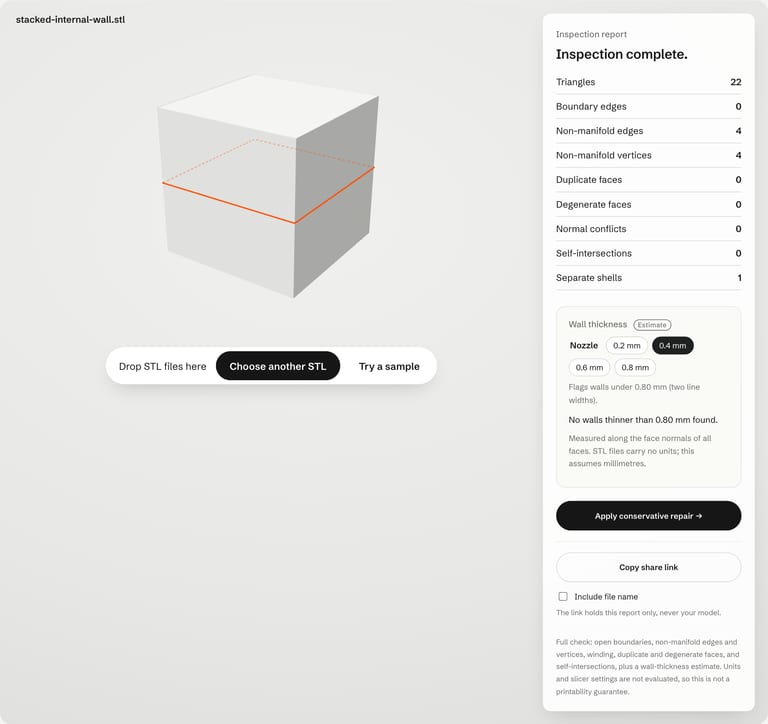
Internal wall. Two 20 mm cubes stacked and merged with Merge by Distance left the shared square inside the solid. Non Manifold selected 4 edges. Interior Faces selected the 2 triangles of that wall, and deleting them left a clean 20 × 20 × 20 mm box.
Holes. Fill Holes closed both a small missing quad and a completely missing bottom face. Its Sides option limits the hole size; 0 fills all holes (Blender manual). Fill Holes adds flat faces, so check curved openings by eye.
Mirrored objects. A block with an unapplied X scale of −1 exported with correct, outward-facing normals in 5.2.1, so negative scale was not a problem in our test. Applying the scale (
Ctrl-A) before export does no harm.Zero-thickness surfaces. Bambu Studio refused our 40 × 20 mm plane with "Loading of a model file failed." A 2 mm Solidify modifier turned it into a closed 1,600 mm³ solid.
Important
Fix the problem in the .blend file, not only in the exported STL. Otherwise it comes back with the next export.
Check the exported file#
Exporting is where unit, visibility and modifier mistakes show up, so check the STL itself, not just the Blender scene:
Drop the file into FixSTL. Read the dimensions first, then the counts. Everything runs in the browser and the file is not uploaded.
Separate shells above 1 means more than one piece: an extra object, a cutter, or parts that were never joined.
Self-intersections usually mean overlapping parts. Union them in Blender. FixSTL rebuilds small local crossings itself, but not parts pushed into each other.
Boundary edges, non-manifold edges and normal conflicts match the Non Manifold options above.
FixSTL's automatic repair fills flat and curved holes up to about a third of the model's size, welds near-duplicate vertices, removes duplicate and zero-area faces and zero-thickness flaps, makes face orientation consistent, and cuts out and refills small patches where faces cross each other. In our tests, repeated with the October 2026 engine, it fixed the small missing quad and the flipped faces, and left four files unchanged: the internal wall, the missing bottom face (too large to fill automatically), the overlapping peg and the exported cutter. Those need a decision about the design, which belongs in Blender. How to check an STL after repair covers the full check.
Then slice it#
Import the file into your slicer and compare its size with your model before you look at anything else. Then read any mesh warnings and scrub the layer preview. Bambu Studio STL repair walks through what Bambu Studio reports for each of the files above, and which warnings changed the print.
FAQ#
Why is my Blender STL tiny in the slicer?#
Blender wrote metres and the slicer read millimetres. A part modelled as 0.04 m arrives as 0.04 mm. Export with Scale 1000, or set Unit Scale to 0.001 and model in millimetres. Leave Scene Unit off in a millimetre scene: in our test it turned 40 mm into 0.04.
Why is my Blender STL 1000 times too big?#
The scene uses millimetres and the export Scale is 1000, or the part was modelled at 1000 times its size. Check Scene Properties ‣ Units and the export Scale together.
Does Blender export hidden objects to STL?#
Objects hidden with the eye icon were exported in our test, because the exporter follows render visibility by default. Turn on Selection Only, or disable the object for renders with the camera icon.
Do I need to apply modifiers before exporting an STL?#
No. Apply Modifiers is on by default and exports the result of the modifier stack at render settings. Apply them yourself only if you want to edit the result.
Why does my slicer say my Blender model has errors when Blender shows none?#
Check what Blender is showing. Overlapping parts and stray objects pass the Non Manifold check. Also, slicers and checkers count things differently: Bambu Studio reported our internal wall as "4 open edges", while Blender and FixSTL reported 4 non-manifold edges.
Should I fix the STL or the Blender file?#
The Blender file. Repairing the STL is fine for a one-off print, but the next export brings the problem back.
Sources#
Blender Manual, STL import and export, Select All by Trait, Clean Up, Normals and Viewport Overlays
Blender Extensions, 3D Print Toolbox
Bambu Lab Wiki, Split to Objects/Parts
FixSTL tests, 27 October 2026: Blender 5.2.1 LTS and Bambu Studio 02.08.02.61 on macOS. Not tested: other Blender versions, Windows and Linux.
Drop the exported STL into FixSTL to see its size, open edges, non-manifold edges, flipped faces and overlapping shells. The file stays in your browser.
Check your Blender export