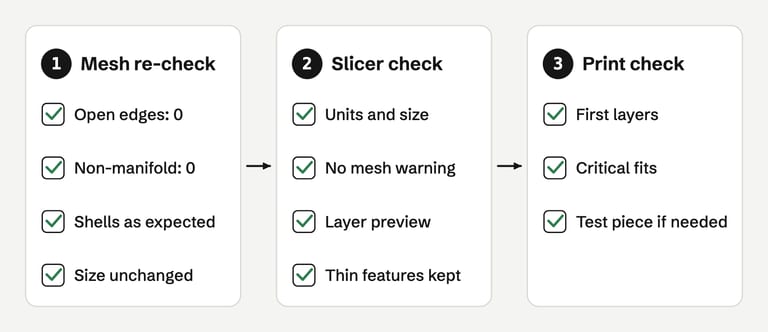
Every repair tool ends with a reassuring message. That message means the tool's own checks passed. It does not tell you whether the repair changed the shape you care about, or whether your slicer will print what you expect. Repairs make choices: they fill holes with invented surfaces, delete faces they judge to be extra, merge vertices and sometimes rebuild the whole surface.
This guide is the check to run after any repair, whether from FixSTL, a slicer's built-in fix, Blender, Meshmixer or MeshLab. It takes a few minutes, and it catches the common ways a "fixed" file still fails.
Before you start: keep the original#
Save the repaired file under a new name and keep the original untouched. Several checks below are comparisons, and if the repair went wrong you will want to try a different method on the original rather than repair a repair. Note which tool and settings you used. When a later print fails, that record tells you whether the repair is a suspect.
Step 1: Re-check the mesh#
Open the exported file, not the copy still loaded in the repair tool. A slicer or editor may have repaired its in-memory copy without writing those changes to disk, and an exporter can add its own changes. FixSTL, for example, analyzes whatever file you drop on it, so dropping the downloaded result is a clean second opinion.
| What to compare | Good result | What a bad result means |
|---|---|---|
| Open (boundary) edges | 0, unless an opening is intentional | Holes remain; check where they are |
| Non-manifold edges | 0 | Three-way edges remain; see the non-manifold guide |
| Normal conflicts | 0 | Some faces still disagree about outside |
| Self-intersections | 0, unless parts are meant to overlap | Overlapping parts remain; your slicer may merge them, so check the preview |
| Shells | Same as the parts you intend | Parts were merged, deleted or split unexpectedly |
| Dimensions (X, Y, Z) | Same as the original, within your tolerance | The repair moved or rebuilt geometry, or the units changed |
| Triangle count | Similar, unless you remeshed or simplified | A large increase suggests a remesh; a large drop suggests deleted parts |
Pay attention to shells. Meshmixer's Inspector deletes small disconnected components below 1% of the model by default (Meshmixer help). That removes scan debris, but it also removes a small part that was meant to be there.
FixSTL compares each repair with your original surface. Most of its fixes barely move geometry: welding, cleanup and reorienting may shift the surface by at most 0.1% of the model's bounding-box diagonal. Two kinds of repair add new surface. A filled hole spans the opening, and a rebuilt patch replaces a small damaged area (faces that cross each other or crowd onto one edge) that FixSTL cut out and filled again. A rebuilt result must stay within 1% of the diagonal of your original surface and keep the same number of parts. Anything beyond these limits is discarded and your original geometry is kept, instead of returning a reshaped model. The report does not show where a patch was rebuilt, which is one more reason to run Step 2. A result is only called fixed after the repaired file passes the full check again. Other tools make larger changes by design. Meshmixer's Make Solid rebuilds the surface from voxels, so "details smaller than a few blocks will likely be lost" and "sharp edges will likely be smoothed" (Meshmixer help). After a remesh, compare dimensions carefully.
Step 2: Compare the shape with the original#
Numbers can match while a detail has changed. Open the original and the repaired file side by side, or overlay them in an editor, and look at three places:
The repaired regions. A filled hole should be flat where the surface was flat and should not bulge. Fills across curved openings are guesses.
Intentional openings. Drain holes, vents, hollow interiors and open-bottom shapes are real geometry. Automatic hole fillers do not know that. Bambu Lab warns that its Close Holes slicing mode "may unintentionally alter the model's design or functionality" (Bambu Lab wiki). Cura's Remove All Holes setting also ignores holes visible from above or below (Cura definitions).
Fine detail and sharp edges. Text, thin ribs, chamfers and small pins are the first things a remesh loses.
Step 3: Check it in your slicer#
Load the repaired file with the printer, material and profile you will actually print with. Defaults can hide problems that your real settings expose.
Units and size#
Compare the size the slicer shows with the design:
PrusaSlicer: the object manipulation panel shows and edits position, rotation, scale factor and size (Prusa Knowledge Base). If an object looks too small, PrusaSlicer offers to convert it from inches.
Bambu Studio: the object dimensions appear in the right-hand panel (Bambu Lab wiki), and the measurement tool measures distances and angles between points, lines, surfaces and circles (Bambu Lab wiki).
OrcaSlicer: the Measure Tool measures between points, edges and faces (OrcaSlicer wiki).
Cura: the scale tool shows the exact size in millimeters (UltiMaker support). Also check whether Cura's preferences for automatically scaling extremely small or large models resized the part on import (UltiMaker support).
A model that is exactly 25.4 times too small or too large is almost always an inch/millimeter mix-up. A factor of 1,000 points to meters.
The mesh warning#
The warning symbol next to the object in Bambu Studio, OrcaSlicer or PrusaSlicer should be gone. In Cura, the "missing or extraneous surfaces" notification should not appear, and the X-ray view should show no red areas. UltiMaker notes that X-ray does not display every type of error, "so this is not a guarantee the model is correct" (UltiMaker support). If a warning remains, read it: a slicer counting a handful of open edges on a large model may be pointing at a real gap or at something harmless. Bambu Studio STL repair compares its warnings with the sliced result.
The layer preview#
This is the most important check. Slice, then drag the layer slider. Prusa's advice applies to every slicer: "Check the overall shape of the model and make sure it matches the 3D object" (Prusa Knowledge Base). Bambu Studio lets you drag the bars on the right and bottom to inspect layers and the print path (Bambu Lab wiki). Cura's layer view has a slider whose handles set the visible range (UltiMaker support).
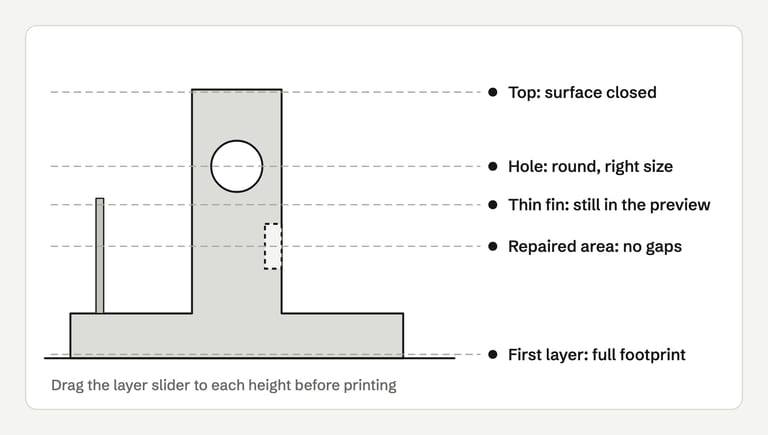
Stop at these heights:
The first layer. The footprint should be complete. A missing area here usually means geometry was lost at the base.
The repaired areas. Walls should be continuous, with no gaps, extra internal walls or blobs.
Thin features. Fins, text and pins should still be present. If they vanish, the problem is thickness, not the mesh. Look at your slicer's thin-wall settings or thicken the feature in the source.
Holes and bridges. Holes should be round and the right size. Make sure intentional holes were not filled.
Top surfaces. They should close. Gaps in a top skin can point to an opening the repair missed.
Slicing warnings#
Read anything the slicer reports after slicing. Bambu Studio lists problems such as floating regions in the bottom right of the workspace (Bambu Lab wiki). PrusaSlicer reports empty layers as a slicing warning (PrusaSlicer 2.3.0 notes). An empty layer in the middle of a part usually means faulty geometry or a feature too thin to slice at that height.
Parts and shells#
PrusaSlicer and Bambu Studio import an STL as a single object no matter how many shells it contains (Prusa, Bambu Lab). If your model is an assembly, split it to confirm each part is intact. If it should be one solid, make sure the slicer shows one.
Step 4: Check the print#
The slicer preview is a simulation. For anything long, expensive or functional, check the real thing:
Watch the first layers. Adhesion problems and missing base geometry show up immediately.
Test critical fits. If the repair touched a hole, a peg or a mating surface, print just that region first. PrusaSlicer and Bambu Studio both include a cut tool for isolating a section, or you can export just that region from your editor.
Measure the result. Compare critical dimensions with the design, not just with the repaired file.
The checklist#
Copy this into your print notes:
Original saved; repaired file saved under a new name.
Repaired file re-opened in a checker: open edges 0, non-manifold edges 0, normal conflicts 0.
Shell count matches the intended parts.
Bounding box matches the original; no 25.4× or 1000× scale error.
Repaired areas, intentional holes and fine details compared with the original.
Slicer shows no mesh warning with the real print profile.
Layer preview checked at the first layer, repaired areas, thin features, holes and top surfaces.
Slicing warnings read and resolved.
First layers watched; risky features test-printed when it matters.
When to stop and go back to the source#
Repair is the wrong tool when:
The same problem appears every time you export. Fix the model in CAD or Blender instead: union the parts, remove internal faces or check the export settings. Blender STL export covers each of these.
The repaired file is the right shape but walls disappear in the preview. That is a thickness or settings problem.
Repair keeps failing or changes the shape more than you can accept. Rebuild the damaged region in an editor, or regenerate the model.
The part has precise dimensions and the repair remeshed it. Go back to the CAD source.
FAQ#
How do I know if my STL is printable?#
Prove the mesh is clean with a checker: no open or non-manifold edges. Then confirm the size, slice with your real profile, step through the layer preview and read any slicing warnings. For risky features, print a test. A clean mesh alone does not prove printability; see watertight vs manifold vs printable.
Should I re-check a model that my slicer repaired automatically?#
Yes, if you plan to reuse it. Slicers often repair a model in memory when they load it, and that repair may not be saved back to the STL. The same file can behave differently in another slicer or version. Export the repaired model, or repair it in a dedicated tool, and re-check that file.
Why does my repaired STL still show errors in my slicer?#
Tools count problems differently, and many repairs are partial by design. Prusa and Bambu Lab both say their built-in repair cannot fix every model (Prusa, Bambu Lab). Check what the remaining warning refers to, then use the layer preview to decide whether it matters.
Why did my model change size after repair?#
Usually because of units, not the repair. STL has no units, so a tool may have read inches as millimeters, or a slicer preference may have auto-scaled the part. A remesh can also shrink or grow details slightly. Compare the bounding box with the original before slicing.
How much change is acceptable after a repair?#
It depends on the part. For decorative models, small changes at a repaired spot are usually fine. For functional parts, compare the critical dimensions with the design tolerance. FixSTL discards repairs that move the surface by more than 0.1% of the bounding-box diagonal, or more than 1% where it rebuilt a damaged patch, which is a reasonable default for keeping a design intact. On a 100 mm part, 1% is up to 1.7 mm at the rebuilt spot, so measure critical features near any area that was badly damaged.
Can I trust "0 errors"?#
Trust it for what the tool checks, and know what it does not check. Mesh checkers usually do not judge wall thickness, overlapping parts that slicers merge, or scale. FixSTL's full check covers self-intersections and estimates wall thickness, but does not know units or your slicer settings, and its Basic check fallback also skips self-intersections and non-manifold vertices.
Sources#
Prusa Knowledge Base, Object manipulation panel, First print with PrusaSlicer, Split to objects/parts and Corrupted 3D models
Bambu Lab Wiki, Measurement tool, View slicing information, Printing large files and Special slicing modes
OrcaSlicer Wiki, Prepare: basics
UltiMaker Support, Cura workflow and Scaling models; Cura setting definitions
Autodesk Meshmixer Help, Inspector and Make Solid
Open the exported file in FixSTL to confirm open edges, non-manifold edges and vertices, normal conflicts and self-intersections are gone. It runs in your browser and keeps the file on your device.
Re-check a repaired STL