"Make it watertight" is the most common advice for a failing STL, and it is incomplete. Watertight, manifold and printable describe three different things. A mesh can pass the first check and fail the other two, and some meshes that fail the first two still print fine.
This guide defines each property, shows counterexamples you can reproduce, and gives an order of checks that tells you where a problem actually is.
Three properties, defined#
| Property | The question it answers | How to check it | Example of a failure |
|---|---|---|---|
| Watertight | Is the surface closed? | Count boundary (open) edges: there should be none | A missing face; an unwelded seam |
| Manifold and oriented | Is it the skin of a solid, with a clear inside? | Every edge has exactly two faces; no bowtie vertices; neighboring normals agree and point out | Two parts sharing one edge; an internal wall; an inside-out part |
| Printable | Can this printer make it with these settings? | Slicer preview, settings and a test print | A 0.1 mm wall; a part 25 times too small |
The words are not used consistently. Blender's manual treats them as synonyms: "Manifold meshes, also called 'water-tight' meshes, define a closed non-self-intersecting volume" (Blender glossary). The 3D Print Toolbox documentation defines watertight as "the surface is closed everywhere" (3D Print Toolbox wiki). The 3MF specification spells the strict version out: every edge shared by exactly one other triangle, all normals pointing away from the interior, and no holes, gaps or open edges (3MF Core Specification).
This guide uses the narrow meanings above because they separate problems that need different fixes.
Watertight but not manifold#
The simplest counterexample is two closed cubes that share exactly one edge. There are no holes anywhere, so the mesh is watertight. But the shared edge has four faces, two from each cube, so it is non-manifold. A slicer cannot tell from the topology whether the cubes are one solid or two.
Internal walls are the other common case. Merge two boxes without a boolean union and the wall between them stays inside. Nothing is open, but every edge where that wall meets the outer skin has three faces. The non-manifold guide shows how to find and remove these.
Manifold but not printable#
Once a mesh is closed, manifold and consistently oriented, every remaining problem is physical. Here are four common ones.
Too thin to print#
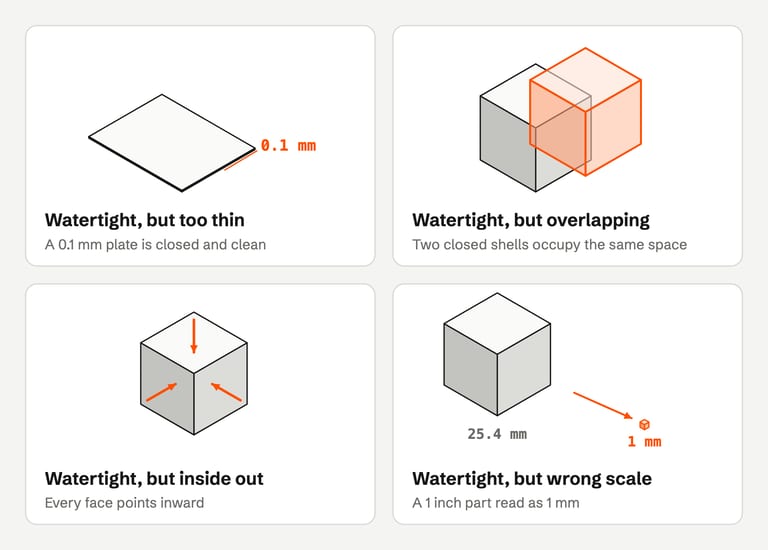
A 0.1 mm plate can be a perfect closed solid. An FDM nozzle that lays down lines roughly 0.4 mm wide cannot print it as designed. Slicers handle thin geometry differently:
Cura does not print features thinner than Minimum Feature Size (0.1 mm by default in Cura 5.13). Print Thin Walls prints pieces thinner than the nozzle size (Cura definitions).
PrusaSlicer's Detect thin walls generates a single perimeter for thin walls, but "walls thinner than a single perimeter extrusion width will likely still be ignored". It is disabled when the Arachne perimeter generator is active (Prusa Knowledge Base).
Bambu Studio's Detect thin wall helps small text slice, but Bambu Lab warns it "can cause other problems", such as overlapping walls (Bambu Lab wiki).
Mesh repair cannot fix a thin wall. Thicken it in the source model, or scale the part if the design allows it.
Overlapping shells#
Two shells that intersect, such as an arm pushed into a body, are each closed and manifold. Together they occupy the same space twice. Many slicers resolve this for you. Cura's Union Overlapping Volumes is on by default and prints overlapping volumes as one. UltiMaker notes this "may cause unintended internal cavities to disappear" (Cura definitions). Blender's 3D Print Toolbox notes that some slicers can deal with intersections, so they do not always need resolving.
Overlaps matter more when you need the volume to be right (for material estimates or resin hollowing), when you plan boolean operations, or when an internal cavity is part of the design.
Inside out#
Every face has a normal, and the STL format expects it to point out of the solid, with corners listed counterclockwise as seen from outside (Library of Congress). If a whole shell is reversed, every face agrees with its neighbors, so a neighbor-by-neighbor check finds nothing wrong, yet the shell describes the space around the object.
Blender's Face Orientation overlay shows back faces in red. Mesh ‣ Normals ‣ Recalculate Outside (Shift-N) flips faces where needed so they all point outward (Blender manual). MeshLab's Re-Orient all faces coherently filter warns that it "can end up in a consistent orientation that can be exactly the opposite of the expected one", in which case you invert the whole mesh (PyMeshLab filters).
Wrong scale#
STL has no units (The StL Format, archived). A part designed as a 1 inch cube can arrive as a 1 mm cube. The mesh is perfect; the size is wrong by a factor of 25.4. PrusaSlicer offers to convert from inches when an imported object looks too small. Cura has optional preferences to scale extremely small or large models automatically. Either way, compare the dimensions with the design before slicing.
Other physical limits#
Beyond these four, printability depends on the process. FDM prints need supportable overhangs and a stable first layer. Resin prints need drain holes for hollow parts and attention to suction and trapped resin. Every process has a build volume. None of these shows up in a mesh check.
What FixSTL reports for these cases#
We ran synthetic test meshes through FixSTL's full check (the October 2026 WebAssembly engine) to show what a mesh checker can and cannot see. Each cube is 10 mm. "Verified solid" means the repaired file passed every topology check: closed, edge- and vertex-manifold, consistently wound, free of self-intersections and outward-facing.
| Test mesh | Open edges | Non-manifold edges | Non-manifold vertices | Self-intersections | After repair |
|---|---|---|---|---|---|
| Closed cube | 0 | 0 | 0 | 0 | Unchanged: already a verified solid |
| Cube with one face missing | 4 | 0 | 0 | 0 | Unchanged: the opening is too large to fill |
| Two cubes sharing one edge | 0 | 1 | 2 | 0 | Unchanged: reported, parts not separated |
| Two cubes sharing one corner | 0 | 0 | 1 | 0 | Unchanged: reported, parts not separated |
| Two overlapping cubes | 0 | 0 | 0 | 18 | Unchanged: 18 intersecting pairs remain |
| Inside-out cube | 0 | 0 | 0 | 0 | Fixed: one inside-out shell turned outward |
| 10 × 10 × 0.1 mm plate | 0 | 0 | 0 | 0 | Unchanged: a verified solid; flagged as thin |
The inside-out cube shows nothing in the counts before repair; it is not a verified solid, and the repair finds and fixes the reversed shell. The last row is the point of this guide: a perfect topology report says nothing about whether a 0.1 mm plate can print. FixSTL's separate wall-thickness estimate flags the plate as thinner than a 0.4 mm nozzle can print, but it cannot thicken it, and it does not know the file's units (how the estimate works). FixSTL's full check runs as WebAssembly in your browser. If your browser cannot run it, a Basic check takes over; it skips the self-intersection and non-manifold vertex checks, and the report says so.
Note
"Make watertight" tools fill holes. Small flat holes are easy to fill faithfully. Large or curved openings are filled with an invented surface, and intentional openings such as vents and drain holes get closed too. FixSTL fills holes, flat or curved, only when they span less than about a third of the model, so a whole missing side stays open. It compares each repair with your original surface and discards any that would move it beyond set limits (0.1% of the model's size, or 1% where it rebuilt a damaged patch), keeping your original geometry.
A practical order of checks#
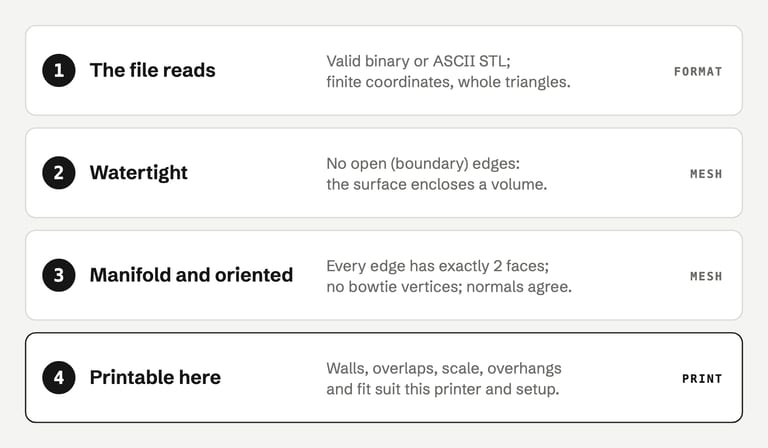
The file reads. It opens without errors, and the triangle count and size look plausible.
Watertight. There are zero open edges, or only ones you intend.
Manifold and oriented. There are no non-manifold edges and no normal conflicts. In a viewer that shows back faces, nothing is inside out.
Scale. The bounding box matches the design in millimeters.
Printable here. Slice with your real profile. Look at walls, thin features, overhangs and every height where something changes. Then print the first layers or a test piece of the risky area.
Steps 1 to 3 can be automated. Steps 4 and 5 need your printer and your judgment. How to check an STL after repair turns them into a checklist.
FAQ#
Is watertight the same as manifold?#
Some tools use them as synonyms, Blender's manual included. Strictly, watertight means no holes, while manifold also requires every edge to have exactly two faces. A mesh can be watertight but non-manifold, for example two cubes sharing an edge.
Can a watertight STL fail to print?#
Yes. A watertight mesh can have walls thinner than your nozzle can print, overlapping parts, shells that are inside out or the wrong scale. It can also have overhangs your printer cannot bridge. Watertight is a requirement for a reliable slice, not a guarantee of a good print.
Does making an STL watertight change the model?#
It can. Filling a hole adds surface that was not in the original. That is harmless for a small flat gap and wrong for an intentional opening. Remeshing tools that guarantee a watertight result, such as Meshmixer's Make Solid, rebuild the whole surface and can smooth sharp edges and lose fine detail.
What does manifold mean in 3D printing?#
A manifold mesh is a closed surface where every edge is shared by exactly two faces and every vertex sits on one continuous fan of faces. With outward-facing normals, that gives the slicer an unambiguous inside and outside at every layer.
Do slicers require manifold meshes?#
They work best with them, but most slicers repair simple problems on load and many slice imperfect meshes correctly. UltiMaker cautions that slicing non-manifold models "may lead to unexpected print results" (UltiMaker support). The layer preview is the practical test.
How do I check if an STL is printable?#
First prove the mesh is clean with a checker: no open or non-manifold edges. Then check the size, slice it with the profile you will print with, step through the layer preview, and print the first layers or a small test of any risky feature.
Sources#
Blender Manual, Glossary and Normals; 3D Print Toolbox wiki
3MF Consortium, 3MF Core Specification
Library of Congress, STL format family
UltiMaker Cura, setting definitions (5.13.0); UltiMaker Support, Missing or extraneous surfaces
Prusa Knowledge Base, Layers and perimeters
Bambu Lab Wiki, Wall generator
PyMeshLab, Filter list
FixSTL reports open edges, non-manifold edges and vertices, self-intersections and inside-out shells in your browser. It estimates wall thickness but does not know units or your slicer settings, so pair it with your slicer.
Check whether your STL is closed