"Non-manifold" is the most common warning in 3D printing and one of the least explained. It is a precise idea: count the faces around an edge. If the count is anything other than two, the surface stops behaving like the skin of a solid object, and software that needs to know what is inside starts guessing.
This guide covers what counts as non-manifold, why a model can look perfect and still fail the check, how to find the problem in Blender, Meshmixer, MeshLab and FixSTL, and how to fix it without changing the parts of the model you care about.
What "manifold" means for a mesh#
A surface is manifold when every small patch of it looks like a piece of a flat sheet. For a triangle mesh that comes down to two rules:
Every edge has exactly two faces. "In a manifold surface mesh, all edges are connected to exactly two faces" (PMP Library).
The faces around each vertex form a single fan. CGAL defines a non-manifold vertex as a point where the faces around it do not form one disk (CGAL Polygon Mesh Repair).
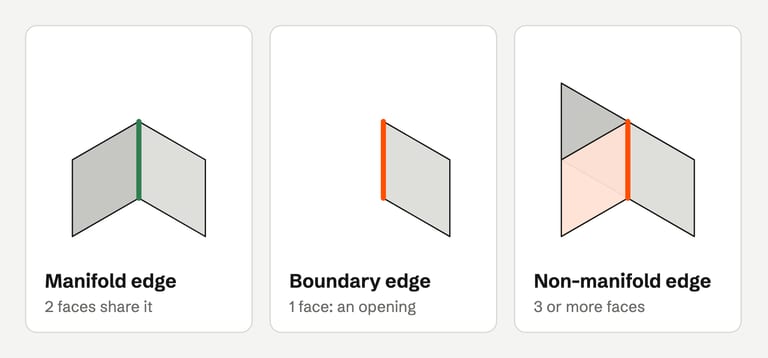
Blender's glossary lists four kinds of non-manifold geometry: borders and holes (edges with one face), wire edges and vertices that belong to no face, edges connected to three or more faces, and vertices joining faces that do not otherwise touch, "e.g. two cones sharing the vertex at the apex" (Blender glossary).
Tools use the word differently. Blender's Non Manifold selection includes holes (its Boundaries option). Other tools, including some slicer tooltips, count open edges separately from non-manifold edges. FixSTL also reports boundary edges and non-manifold edges separately, so you can tell a hole from a three-way edge. When two tools disagree on the count, check which definition each one uses.
Kinds of non-manifold geometry#
Edges with three or more faces#
This is the classic non-manifold edge. Three faces meeting on one edge look like a T or a fin in cross-section. A slicer cutting through that edge gets an outline that branches, so there is no single answer to "which side is inside".
Non-manifold vertices#
Two parts that touch at exactly one point share a vertex but nothing else. Each part can be perfectly closed. The shared point is still ambiguous: is it one solid or two? MeshLab's documentation uses the same two-cones example (PyMeshLab filters).
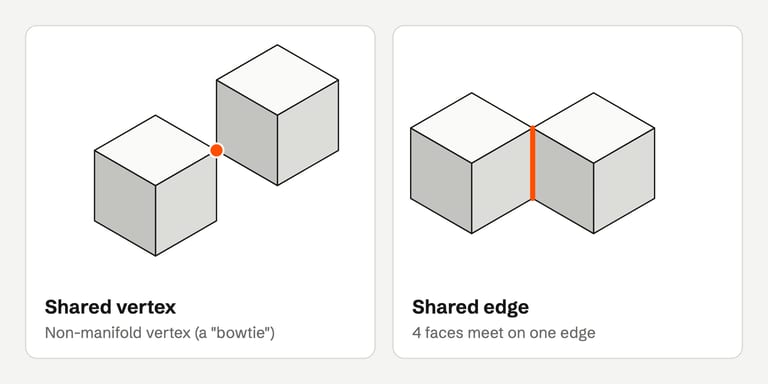
When the two parts share a whole edge instead of a point, that edge has four faces: two from each part. This happens constantly in CAD exports and kitbashed models where parts are placed exactly edge to edge.
Open edges#
An edge with only one face is a boundary of a hole. Some tools call this non-manifold, others call it an open edge. Either way it is the most common reason a mesh is not watertight. The STL errors map covers holes in detail.
Loose and wire geometry#
Vertices and edges that belong to no face are invisible in a shaded view and meaningless to a slicer. Blender's Loose Geometry selection finds them, and Mesh ‣ Clean up ‣ Delete Loose removes them (Blender manual).
Why a model can look fine but still be non-manifold#
A viewer draws every triangle and shades it. It never asks how the triangles connect. Several common situations produce a model that renders perfectly and still fails a manifold check:
Internal faces. Two parts joined by placing them together, rather than with a boolean union, keep the faces where they meet. From outside you see one object. Inside, a wall divides it, and every edge where that wall meets the outer skin has three faces.
Coincident but unconnected vertices. Two corners can sit a thousandth of a millimeter apart. On screen the seam is closed. In the topology the edges are separate, so each one is open.
Duplicated geometry. Faces copied on top of each other look like one face. Their shared edges then have too many faces.
Parts touching at an edge or a point. Common in CAD assemblies exported as a single STL.
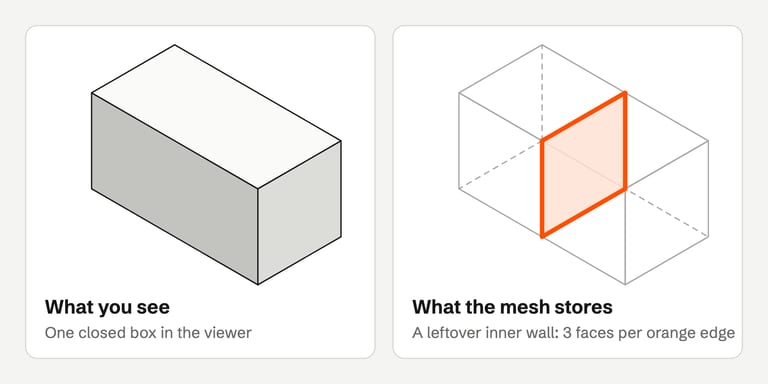
That is why the reliable test is a topology check, not a visual one.
Why it matters for 3D printing#
A slicer cuts the mesh into horizontal layers and turns each cut into closed outlines with an inside and an outside. A three-way edge or an internal wall makes that decision ambiguous. Depending on the slicer and the settings, you may get missing walls, extra internal walls, small gaps or layers that disappear.
Blender's manual notes that non-manifold geometry "is not suitable for several types of operations, especially those where knowing the volume (inside/outside) of the object is important", naming 3D printing as one (Blender glossary). UltiMaker warns that slicing models that are not manifold "may lead to unexpected print results" (UltiMaker support).
That said, many slicers handle simple cases. PrusaSlicer and Bambu Studio repair models "to a certain degree" on load. A non-manifold warning means "check the preview", not necessarily "the print will fail".
How to find non-manifold geometry#
In Blender#
Select the object and switch to Edit Mode.
Switch to Vertex or Edge select mode. The command is not available in Face mode.
Choose Select ‣ Select All by Trait ‣ Non Manifold.
The operator panel lets you choose what to select: Wire, Boundaries (holes), Multiple Faces (edges with three or more faces), Non Contiguous (edges between faces with opposite normals) and Vertices (Blender manual). Turning options on one at a time tells you which problem you have. If the model is going to a printer, Blender STL export also covers export settings and the problems this check misses.
For a printing-specific report, the 3D Print Toolbox extension (Blender 4.2 or newer) adds checks in the 3D View sidebar. Its Solid check finds non-manifold edges and edges between faces with inconsistent normals.
In Meshmixer#
Open Analysis ‣ Inspector (hotkey i). Inspector marks red spheres at non-manifold regions, which it describes as "bowtie" vertices or edges with more than two connected triangles. Blue marks holes and magenta marks small disconnected components (Meshmixer help). Autodesk states that Meshmixer "is no longer in development and will not be supported", and 3.5.0 is listed as the last release (Autodesk App Store).
In MeshLab#
Use Select non Manifold Edges and Select non Manifold Vertices from the selection filters. The first selects the faces around edges where more than two faces meet. The second selects vertices like the two-cones case, ignoring vertices already on non-manifold edges (PyMeshLab filters). Compute Topological Measures gives an overall report for the mesh.
In FixSTL#
Drop the STL onto FixSTL. The inspection report counts non-manifold edges separately from boundary (open) edges, along with duplicate faces, degenerate faces, normal conflicts and separate shells. The full check also counts non-manifold vertices, so two parts touching at one corner are flagged, and reports self-intersections. Everything runs in a browser worker, so the file is not uploaded. If your browser falls back to the Basic check, non-manifold vertices are not checked and the report says so.
In your slicer#
Bambu Studio, OrcaSlicer and PrusaSlicer show a warning symbol next to a problem object in the object list. Treat the slicer as a second opinion: it uses its own definitions and may already have repaired part of the problem in memory. In our Bambu Studio tests, an internal wall that Blender and FixSTL report as non-manifold showed up as open edges.
How to fix non-manifold geometry#
Start from the cause. The same warning can come from very different problems, and the right fix depends on which one you have.
| Cause | Fix | Tool examples |
|---|---|---|
| Internal faces from merging parts | Delete the internal faces, or redo the merge as a boolean union | Blender 3D Print Toolbox Make Manifold; boolean union in CAD |
| Nearly coincident vertices | Merge vertices within a small distance | Blender Merge by Distance; MeshLab Merge Close Vertices; FixSTL welding |
| Parts touching at an edge or corner | Move them apart or overlap them, then union | Source CAD or Blender |
| Stray faces or fins | Delete them | Blender face delete; MeshLab Repair non Manifold Edges |
| Non-manifold vertices | Split the vertex, or separate or join the parts | MeshLab Repair non Manifold Vertices by splitting |
| Damage everywhere, as in a broken scan | Rebuild the surface | Meshmixer Make Solid (changes shape) |
Fix it in Blender#
In Edit Mode, select all and run Mesh ‣ Clean up ‣ Merge by Distance with a small distance. This welds vertices that are closer together than the threshold (Blender manual).
Run Select All by Trait ‣ Non Manifold again to see what remains.
Delete stray faces and internal walls by hand. For an internal wall, select it and delete the faces.
Run Mesh ‣ Normals ‣ Recalculate Outside (
Shift-N) so all faces point outward.Optionally use the 3D Print Toolbox Make Manifold clean-up. It attempts to fix "bad normals", fill holes and remove empty edges and faces. Its documentation says it attempts to fix them, so check again afterwards.
Fix it in Meshmixer#
Click Auto Repair All in Inspector, or click each marker to repair it individually. For non-manifold regions, Inspector deletes the red triangles and fills the resulting hole. Check the Small Thresh setting first: Inspector deletes small components below 1% by default, and Autodesk warns this "can be a disaster if your mesh just happens to contain small parts" (Meshmixer help).
Edit ‣ Make Solid is the heavy option. It rebuilds the shape from voxels, so "details smaller than a few blocks will likely be lost" and "sharp edges will likely be smoothed" (Meshmixer help). It adds the result as a new object and leaves the original unchanged.
Fix it in MeshLab#
Repair non Manifold Edges has two methods. Remove Faces deletes the smallest face on each non-manifold edge until two remain. Split Vertices turns each non-manifold edge chain into a border. Use Repair non Manifold Vertices by splitting for vertices (PyMeshLab filters). Splitting fixes the topology but not the geometry. CGAL notes that the new vertices sit at the same position as the original, so the parts still touch in space (CGAL).
Fix it with FixSTL#
FixSTL's automatic repair removes duplicate and degenerate faces, welds nearly coincident vertices, makes neighboring faces agree on orientation and fills holes. When non-manifold edges come from duplicated faces or unwelded seams, those steps clear them. It also removes zero-thickness flaps hanging off an edge, a common leftover in AI-generated and high-poly exports. Where a small patch of the surface is damaged, FixSTL cuts out the bad faces with a ring of faces around them and fills the opening again, the way MeshFix does. That rebuild is limited to patches smaller than 15% of the model's bounding-box diagonal, must keep the number of separate parts, and must stay within 1% of the diagonal of your original surface. It does not split vertices, and it does not decide which of three surfaces on a genuine three-way edge is extra. In our tests with the October 2026 engine, two cubes sharing an edge and two stacked cubes with the wall between them came back unchanged with the same edges still reported, while a closed box with a thin flap on one edge came back as a verified solid with that one face removed. Separating touching parts or deleting an internal wall changes the design, so do it in an editor where you can see what is removed.
When repair changes the shape#
Every non-manifold fix makes a choice about geometry:
Removing faces decides which of three surfaces was "extra". MeshLab removes the smallest one, which is not always the right one.
Filling holes invents a surface. Flat fills are safe on flat walls, but a fill across a curved opening will not match the design.
Remeshing (Make Solid or voxel rebuilds) replaces the whole surface. It is a good trade for scans and broken sculpts. It is a bad trade for mechanical parts with precise dimensions.
Slicer-side fixes such as Cura's Union Overlapping Volumes do not change the file, but they change what prints. UltiMaker notes it "may cause unintended internal cavities to disappear".
FixSTL takes the conservative side. It compares each repair with your original surface. Welding, cleanup and reorienting may move it by at most 0.1% of the model's bounding-box diagonal; a filled hole or a rebuilt patch adds new surface there, and the result must stay within 1% of the diagonal of the original. A repair beyond those limits is discarded and your original geometry is kept. The report does not show where a patch was rebuilt, so on functional parts compare the critical dimensions. Whatever tool you use, keep the original file and compare the result with the checklist in How to check an STL after repair.
Important
If the model came from CAD or Blender, fixing the source is usually better than fixing the STL. Union the parts or remove the internal faces there, then export again. Otherwise the problem comes back with every export.
FAQ#
What is a non-manifold edge?#
An edge shared by three or more faces. In a clean, closed mesh every edge has exactly two faces, one on each side. With three or more, software cannot tell which side of the surface is inside.
Are non-manifold edges a problem for 3D printing?#
They can be. They make inside and outside ambiguous for the slicer, which can cause missing or extra walls. Many slicers repair simple cases automatically, so check the layer preview. If the preview matches the model, the warning did not change the print.
Why does Blender show non-manifold edges on a model that looks fine?#
Usually because of internal faces left from joining parts, vertices that sit at the same position but are not merged, or duplicated faces. None of these is visible in a shaded view. Use Select All by Trait ‣ Non Manifold with one option at a time to see which kind you have.
Is non-manifold the same as not watertight?#
Not exactly. A mesh with a hole is not watertight, and some tools call its open edges non-manifold. But a mesh can be watertight and still non-manifold: two closed cubes sharing one edge have no holes, yet that edge has four faces. See watertight vs manifold vs printable.
Can my slicer fix non-manifold edges automatically?#
Partly. PrusaSlicer and Bambu Studio repair models to a degree on load. Their dedicated repair commands are Windows-only. OrcaSlicer's Fix Model works on Windows, macOS and Linux since 2.4.0. Cura does not repair the file but has Mesh Fixes settings that change how it slices. None of them promises to fix everything.
Does FixSTL fix non-manifold edges?#
FixSTL counts them, along with non-manifold vertices, and fixes the ones caused by duplicated faces, unwelded seams and zero-thickness flaps. It also cuts out and refills small damaged patches when the result keeps the same parts and stays close to the original surface. Parts that touch along an edge or at a corner and internal walls stay as they are, because separating or deleting them changes the design. Use a mesh editor or the source model for those.
Sources#
Blender Manual, Select All by Trait, Clean Up, Normals and Glossary
Blender Extensions, 3D Print Toolbox
Autodesk Meshmixer Help, Inspector and Make Solid
PyMeshLab, Filter list
CGAL, Polygon Mesh Repair; PMP Library, Tutorial
UltiMaker Support, Missing or extraneous surfaces
FixSTL reports non-manifold edges, open edges, normal conflicts and shells in your browser, then applies only repairs that keep your original shape.
Count non-manifold edges in your STL