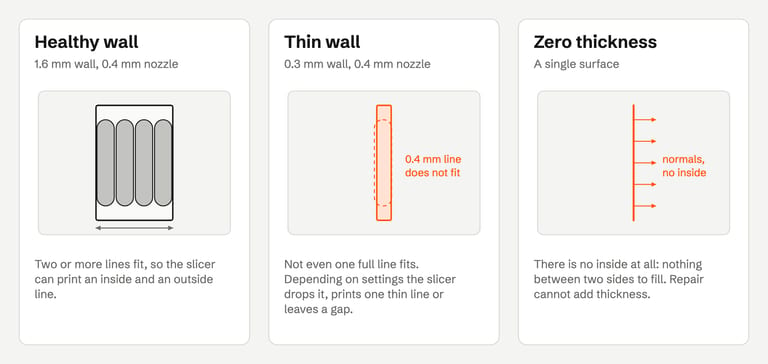
A model that looks complete in the slicer's 3D view can still slice with gaps, dents, missing pieces or completely empty layers. The 3D view shows the mesh. The sliced preview shows what the nozzle can actually lay down. When they disagree, one of two things is usually going on:
Thin walls. The model has real walls, but some are thinner than the lines your nozzle extrudes, so the slicer drops them or prints them as a single weak line.
Zero thickness. Part of the model is a single surface, or two surfaces stuck back to back, with nothing between them. There is no volume to fill.
They look the same in the preview and need different fixes. This guide shows how to tell them apart and what to do about each.
Which problem do you have?#
| What you see | Likely cause | Quick test |
|---|---|---|
| Fine text, fins, threads or edges vanish or come out as a single line | Thin walls | The gaps move or shrink when you change the nozzle, line width or wall generator |
| A whole part slices empty, or prints as broken shells | Zero thickness | Look at the part edge-on: it is a single sheet, or its size on one axis is 0 or a fraction of a millimetre |
| Holes appear on large flat or curved areas and stay put whatever you change | Open edges or flipped faces | A mesh checker reports open or non-manifold edges; see STL file errors |
| The slicer warns about empty layers | Thin walls or a faulty mesh | Find the height in the preview; both causes are possible, so check thickness and the mesh |
Bambu Studio's empty-layer warning names both causes: "Maybe parts of the object at these height are too thin, or the object has faulty mesh" (Bambu Studio source). PrusaSlicer's says such layers are "usually caused by negligibly small extrusions or by a faulty model" (PrusaSlicer source).
Thin walls#
A slicer turns each layer into closed outlines and fills them with extrusion lines whose width is close to the nozzle diameter. A wall narrower than that cannot hold a full line. Bambu Lab's wiki describes exactly this: small parts that "are too small to generate a closed wall loop, resulting in missing parts of the model after slicing", because "the required line width is smaller than the default line width of the current size nozzle" (Bambu Lab wiki).
How thin is too thin#
| Nozzle | One line (about) | Two lines: the usual minimum wall | What happens below one line |
|---|---|---|---|
| 0.2 mm | 0.2 mm | 0.4 mm | Dropped, thinned or printed as a single weak line |
| 0.4 mm | 0.4 mm | 0.8 mm | Dropped, thinned or printed as a single weak line |
| 0.6 mm | 0.6 mm | 1.2 mm | Dropped, thinned or printed as a single weak line |
| 0.8 mm | 0.8 mm | 1.6 mm | Dropped, thinned or printed as a single weak line |
"Two line widths" is a working rule, not a hard limit. OrcaSlicer uses the same boundary for its thin-wall option: "When a wall is too thin to contain two line widths, enabling "Detect thin walls" prints it as a single extrusion line. Thin walls printed this way may have reduced surface quality and strength" (OrcaSlicer wiki). For parts that carry load, thicker is better.
What the slicers do with thin walls#
Bambu Studio. The Arachne wall generator varies the line width so thin areas can still get a wall. Its Minimum feature size defaults to 25% of the nozzle diameter: with a 0.4 mm nozzle, anything thinner than 0.1 mm is ignored, and slightly wider features are widened to a printable line (Bambu Lab wiki). The Classic generator's Detect thin wall helps small text slice, but "can cause other problems", such as overlapping walls.
OrcaSlicer. Detect thin walls prints walls too thin for two lines as a single line, and choosing Arachne "disables "Detect thin walls"" (OrcaSlicer wiki).
PrusaSlicer. Arachne has been the default perimeter generator since 2.5.0 and "automatically widens or thins perimeters as needed" (Prusa Knowledge Base). With the classic generator, Detect thin walls prints a single perimeter, but "walls thinner than a single perimeter extrusion width will likely still be ignored" (Prusa Knowledge Base).
UltiMaker Cura. Print Thin Walls prints "pieces of the model which are horizontally thinner than the nozzle size", and Minimum Feature Size (0.1 mm by default in Cura 5.13) sets the size below which features "will not be printed" (Cura definitions).
Fixing thin walls#
Confirm it in the preview. Step to the height where the gap starts. A wall that stops, or turns into a single line, is a thickness problem.
Try the slicer first if the part is cosmetic: Arachne in Bambu Studio, OrcaSlicer or PrusaSlicer, or Print Thin Walls in Cura. If the feature suddenly appears, the mesh is fine and just thin.
Use a smaller nozzle for fine detail. Bambu Lab notes that with a smaller nozzle "there is a good chance that it will be successfully sliced" (Bambu Lab wiki).
Thicken the model for anything that must be strong or reliable. Edit the wall in the source CAD file, or scale the part if the design allows it.
Mesh repair cannot fix a thin wall. A thin wall is a perfectly valid solid; repair tools close holes and fix topology, they do not move surfaces apart.
Zero thickness#
Some meshes are made for rendering, not printing. Game characters, Sketchfab downloads, architectural models and clothing packs often use single surfaces: a cape, a leaf, a sheet of hair or a garment is one layer of faces. A renderer only needs to draw the surface. A slicer needs a closed volume to fill, and a single surface has no inside.
Two variants are common:
An open single surface. One layer of faces with open edges all around, like a plane, a cloak or a cup modeled without wall thickness.
A double-sided surface. The same surface exported twice with opposite normals, glued back to back. It can look closed and even pass some checks, but the two sides sit on top of each other, so the volume between them is zero.
Slicers handle these in different ways, and none of them adds real thickness. OrcaSlicer's Fix Model leaves "a part that cannot be turned into a solid, such as a single flat sheet" as it was and lists it as failed (OrcaSlicer wiki). Cura's Surface Mode can print "a single wall tracing the mesh surface" instead of a volume (Cura definitions), which suits a vase-like shell but gives you a wall exactly one line thick.
Give the surface thickness in Blender#
Blender's Solidify modifier "takes the surface of any mesh and adds depth, thickness to it" (Blender manual):
Fix the scale first. STL has no units, and downloaded models often arrive at an arbitrary size. Set the real size, then apply the scale (Object ‣ Apply ‣ Scale). Solidify thickness "is calculated using local vertex coordinates", so a non-uniform scale gives uneven walls.
Add Solidify and set Thickness to at least your minimum wall at the final size: 0.8 mm or more with a 0.4 mm nozzle, more for parts that need to be stiff. Offset decides whether the new wall grows inward, outward or both ways, using the face normals.
Turn on Even Thickness to keep the thickness at sharp corners, and Fill Rim so the open edges get closed between the inner and outer surfaces.
Apply the modifier, or tick Apply Modifiers when you export. An unapplied modifier shows a thick model in Blender and exports the thin one.
Check it. Blender's 3D Print Toolbox has a Thickness check: "Faces that form very thin geometry might be missed entirely by the slicer. Such faces are marked as Thin" (3D Print Toolbox wiki).
For a double-sided surface, first delete one of the two layers (or merge them), then solidify what is left. Garments that touch a body also need to overlap it and be joined into one solid before printing; that is the overlapping-shells problem in STL file errors.
Open shape or solid with a hole?#
A cup modeled as a single surface and a solid cup that is missing its top face are the same geometry. No checker can tell which one you meant. If the opening is intentional (a cup, a helmet, a mask), give the surface thickness as above. If the part should be closed, fill the opening in your modeling tool: FixSTL and most automatic repairs only fill small holes, because filling a large opening invents a surface you did not design.
How FixSTL checks wall thickness#
FixSTL runs this check in your browser on every STL you inspect, and again on the repaired file after a repair.
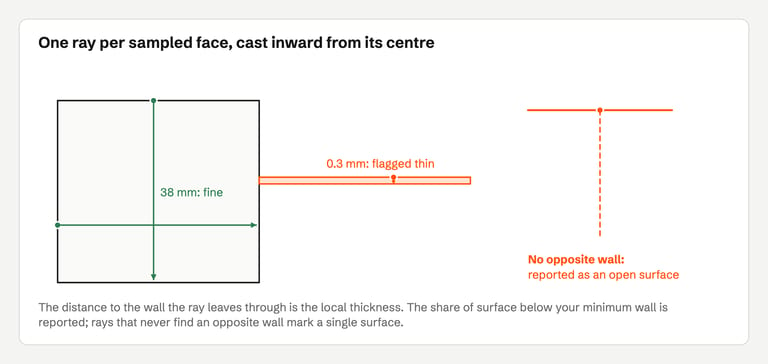
Method. For up to 16,384 evenly sampled faces (all faces on smaller models), FixSTL casts a ray from the face centre along the inward normal and measures the distance to the wall it leaves through. The report gives the share of surface area thinner than your minimum wall, and the preview colours thin faces red and single-surface faces purple.
Your nozzle. Choose 0.2, 0.4, 0.6 or 0.8 mm. The minimum wall is two line widths: 0.8 mm for the default 0.4 mm nozzle.
Single surfaces. Faces whose ray never finds an opposite wall, or finds one at zero distance, are counted as a surface without thickness. FixSTL also measures how large the openings in an open mesh are. When most of the model is like that, the report says it is a surface, not a solid, and explains how to give it thickness instead of offering a repair it cannot make.
Units. STL files carry no units. The check assumes millimetres and says so when a model is smaller than 5 mm or larger than 2 m across, which often means it was exported in metres, centimetres or inches.
What it reports on test models#
These results come from synthetic test meshes, all in millimetres. The same numbers are asserted by FixSTL's test suite, so this table changes if the check does.
| Test mesh | Thinner than 0.8 mm | Single surface? |
|---|---|---|
| 20 mm cube | 0% | No |
| Cup, 60 mm tall, 1.6 mm walls | 0% | No |
| Cup, 60 mm tall, 0.4 mm walls | 80% | No |
| Box with a cavity, 0.5 mm walls | 100% | No |
| 40 × 40 × 0.3 mm plate | 99% | No |
| Flat 40 mm square, one surface | 0% | Yes: a surface, not a solid |
| The same square exported with both sides | 100% | Yes: no thickness |
| The 60 mm cup as a single surface | 0% | Partly: a large opening |
On real models, the check flagged none of the 90 closed (watertight) models among 198 models sampled from the public Thingi10K dataset as a surface (27 October 2026). Flags on open or damaged meshes are less reliable before repair: faces wound the wrong way and inside-out parts confuse the inside and outside of a ray, so the report says so and repeats the check on the repaired file.
Limits#
The thickness along a face normal is an estimate. Near corners and on curved parts the real minimum can be smaller, and very small features between sampled faces can be missed.
It measures geometry, not your slicer's behaviour. Line widths, Arachne settings and the minimum feature size decide what actually prints; check the preview.
It does not thicken walls or turn surfaces into solids.
A checklist before you print#
Confirm the model's size in millimetres.
Check the mesh: no open or non-manifold edges, except openings you intend.
Look for thin walls against your nozzle, and for any part that is only a surface.
Thicken thin or zero-thickness parts in the source model, then export again.
Slice with your real profile and step through every height where a thin feature starts or ends.
The general verification steps are in How to check an STL after repair, and the difference between a closed mesh and a printable one is in Watertight vs printable.
FAQ#
Why does my model look fine in the slicer but parts are missing after slicing?#
The 3D view draws the mesh surface. Slicing turns each layer into extrusion paths, and walls thinner than about one line width cannot be filled. Surfaces with no thickness have no volume to fill at all. Check the layer preview at the height where the part disappears.
What is the minimum wall thickness for 3D printing?#
For FDM, aim for at least two line widths: about 0.8 mm with a 0.4 mm nozzle. Thinner walls may print as a single line or not at all, depending on the slicer's wall generator and minimum feature size. Load-bearing parts need more.
Can STL repair fix thin walls?#
No. A thin wall is valid geometry; repair tools fix holes, flipped faces and other topology problems. Thicken the wall in the model, use a smaller nozzle, or let a variable-width wall generator such as Arachne try to print it.
Why does my Sketchfab or game model slice as hollow or empty?#
Models made for games and rendering often use single surfaces with no thickness. A slicer needs a closed volume. Scale the model to its real size, then give the surfaces thickness, for example with Blender's Solidify modifier, and export again.
What does zero thickness mean in a 3D model?#
The surface has no inside: it is a single layer of faces, or two layers lying exactly on top of each other. It can look solid on screen, but there is nothing between the sides for a printer to fill.
Sources#
Bambu Lab Wiki, Introduction to wall generator; Bambu Studio source, empty-layer warning
Prusa Knowledge Base, Arachne perimeter generator and Layers and perimeters; PrusaSlicer source, empty-layer warning
UltiMaker Cura, setting definitions (5.13.0)
Blender Manual, Solidify modifier; 3D Print Toolbox wiki
Thingi10K, dataset (sample used for the false-positive check)
FixSTL estimates wall thickness against your nozzle, flags single-surface and zero-thickness meshes, and highlights thin areas in the preview. It runs in your browser and keeps the file on your device.
Check your STL for thin walls